Frequently Asked Questionss
 Filter by
Please turn off “Data Roaming” in your phone settings before your Roam-Onz™ quota is exhausted.
There is no need to unsubscribe from UDR10 – it expires automatically.
Roam-Onz™ provides you with free data for roaming in 12 destinations.
Australia
Bangladesh
Cambodia
Hong Kong
India
Indonesia
Laos
Philippines
Singapore
South Korea
Taiwan
Thailand
This bundle plan is available with selected postpaid rate plans only.
It is free of charge.
The amount of data you get depends on the postpaid plan you subscribe to.
| Eligible Rate Plans | Roam-Onz™ Quota |
|---|---|
| P79 Biz | 1GB/month |
| P99 Biz | 3GB/month |
| U Premium | 5GB/month |
| U Platinum | 8GB/month |
The amount of data you get depends on the postpaid plan you subscribe to.
| Eligible Rate Plans | Roam-Onz™ Quota |
|---|---|
| P68 | 500MB/month |
| P70 and P78 | 5GB/month |
| P98 | 8GB/month |
| i90, Ultimate Device 90 | 5GB/month |
| i130, Ultimate Device 130 | 8GB/month |
No. Roam-Onz™ is a data-only service.
No. The quota is exclusively for the principal line.
Yes, you need to connect to our preferred roaming network operator when you are on data roaming at selected destinations.
You may check your quota balance via the MyUMobile AppMyUMobile App, or by dialing *118*6*1*1#
Yes, you will receive notifications when your quota usage reaches 80%, 95% and 100%.
You will be automatically subscribed to 24-hour Roaming RM15. This is a chargeable service at only RM15 per day, per destination.
If your line is suspended for a complete month (based on bill-cycle date), then the monthly fee is not chargeable. It is only chargeable if your line is active for at least one day during the bill-cycle period.
No, there is no notification. If you do not wish to renew the subscription, please unsubscribe before the bill-cycle’s end date.
Effective 18 Aug 2022, Unlimited HERO P139 is paired with FREE Roam-Onz by default. The 36 destinations covered under FREE Roam-Onz are:
- Australia
- Austria
- Bangladesh
- Brunei
- Cambodia
- Canada
- China
- Denmark
- Egypt
- France
- Hong Kong
- India
- Indonesia
- Ireland
- Italy
- Japan
- Laos
- Latvia
- Lithuania
- Myanmar
- Netherlands
- Pakistan
- Philippines
- Poland
- Russia
- Saudi Arabia
- Singapore
- South Korea
- Sri Lanka
- Sweden
- Taiwan
- Thailand
- UK
- Ukraine
- USA
- Vietnam
You can subscribe to Roam-Onz Global™ which covers 36 roaming destinations for RM30/month.
You can subscribe to Roam-Onz Global™ at RM30/month via the MyUMobile App.
Roam-Onz Global™ is a roaming data service that is available across 5 continents in 36 destinations. Please click on Roam Onz Global™ for the complete list.
It is RM30 per month. Customers who sign up for P139 Biz will enjoy it free for 24 months.
Roam-Onz Global™ is a data roaming service which does not include Voice and SMS service.
The data quota is exclusively for Principal line only and is not shareable with Member lines.
You may check via the MyUMobile app or by dialing *118# from your phone. You will receive SMS notifications when the quota usage reaches 80%, 95% and 100%.
You may check via the MyUMobile app or by dialing *118# from your phone. You will receive SMS notifications when the quota usage reaches 80%, 95% and 100%.
It will automatically change the subscription to U Data Roam daily pass. You will be charged at RM10 (Roam-Onz™ countries) or RM36 (U Data Roam countries) per day per country.
You may turn OFF the “Data Roaming” in your Phone Settings.
You do not need to unsubscribe from U Data Roam. Just turn OFF “Data Roaming” in the phone Settings before expiry of the daily pass. Please refer to the U Data Roam T&C for the exact expiry time.
You will not be able to unsubscribe from Roam-Onz Global throughout the promotion period. Just relax and enjoy Roam-Onz Global for 24 months upon sign up for free. FREE 24 months promotion period is only applicable to Unlimited HERO P139 activated before 18 August 2022.
No. It is exclusively for the P139 Biz rate plan.
International Roaming is a service that allows you to use your mobile number to make and receive calls while you are overseas.
You will need to pre-activate your roaming services (IDD & IR) before you travel overseas to enjoy the services such as making calls, send SMS and browse the internet.
If you are an existing Corporate account customer, please contact your Enterprise Account Manager or Enterprise Partner to activate your International Roaming service.
If you are an existing Non-Corporate account customer with more than 6 months of tenure, you can easily activate your International Roaming service with the methods below:
1. Dial *118*6#
2. Send SMS
a. Text “ON ROAMIDD” to 28118
b. To activate a member/supplementary line:
Send “ON ROAMIDD<space><601XXXXXXXX> to 28118
3. Visit the Online Selfcare portal
4. Activate via the MyUMobile App
5. Call-in to 1318
6. Walk into any of our U Mobile Service Centre near you.
To activate these services, please refer to the terms and conditions below:
1. A deposit of RM200 is required if your tenure is less than 6 months.
2. Bring along the necessary documents:
* For Malaysians: A copy of your NRIC and passport
* For Foreigners: A copy of your passport
Note: Please attach your passport copy with the passport details and signature page.
The requirement remains the same as the principal/standalone postpaid subscriber as mentioned above.
No subscription is required. Roaming services (IDD & IR) are pre-activated for all prepaid subscribers.
No subscription is required. Roaming services (IDD & IR) are pre-activated for all prepaid subscribers.
If you can present the last two (2) months' bill* from the previous operator with proof of your roaming services usage which was paid on time, you are entitled to activate IDD & IR services without a deposit.
However, if you have subscribed to auto-debit with U Mobile, you can request for IDD & IR activation without any deposit and will not need to present your previous operator bills.
*The owner’s name presented in the previous operator bills MUST be the same registered name with U Mobile.
Just follow the simple steps below:
Step 1: Dial “+”
Step 2: Insert the Country Code
Step 3: Key in the area/operator code followed by the mobile/fixed line number.
Eg: To send an SMS to Malaysia’s mobile number (0181234567), dial + 60181234567 and press send.
Firstly, ensure that your roaming service is activated. Once that is done, you can manually set your phone settings by following the steps below:
Android:
Step 1: Go to “Settings”
Step 2: Select “More Networks”
Step 3: Select “Mobile Networks”
Step 4: Select “Network Operators
Step 5: Select your preferred network
Step 6: Turn on “Data Roaming”
iPhone:
Step 1: Go to “Settings”
Step 2: Select “General”
Step 3: Select “Cellular”
Step 4: Turn on “Cellular Data” & “Data Roaming”
Step 5: Select “Carrier”
Step 6: Change “Automatic” to "Off"
Step 7: Select your preferred network
For Postpaid subscribers, charges will be reflected in your upcoming bill statement. For Prepaid subscribers, the charges will be directly deducted from your credit balance.
The charges are based on the countries and operators you have selected. For the full list, please visit u.com.my/international-roaming/roaming-overseas.
Yes, charges would vary for peak and off-peak hours according to our roaming partner’s charges.
Yes, you will be charged if you answer any calls while you are roaming. The charges will vary according to the country of originating calls.
This will depend on how your voicemail is set up.
To check your voicemail, just dial +6018 388 1311.
Yes, you will be charged for retrieving your voicemail.
Yes, this will depend on the subscribed rate plan. However, you are advised to settle your outstanding bill before you travel to avoid any interruption to your mobile line.
No, but we would like to advise you to have a minimum of RM10 and above in your credit balance to avoid any interruption when you attempt to make or answer calls.
This will depend on the network operator of each respective country.
You can contact our Customer Service centre at +6018 388 1318 to suspend your line immediately to avoid any unauthorised usages.
The stability of roaming services is subject to the local operator’s network. Try moving to another area with a stronger signal and retry calling.
Due to an intermittent network issue faced by our partners in China - China Unicom, outbound calls with the “+” prefix will not be able to go through.
You can still make calls to Malaysia by using “00” as your international dialling prefix until further notice.
No deposit is required for Malaysians, but a deposit of RM200 is required for foreigners.
Your IDD call will be charged in Ringgit Malaysia (RM).
Your call charges will come under the “International” section in your bill, which records all the calls you made to destinations outside of Malaysia. Then you will see the name of the destination country in your bill.
Yes. Please contact your Enterprise Account Manager or Enterprise Partner or visit the nearest U Mobile service centre
Please view our voice rates for more information.
No. Unless the call is answered by your recipient's voice mail or IVR, you will not be charged.
We’re constantly offering new promotions, so be sure to check our website from time to time, so you can see the latest rates. You may also see changes in IDD rates on your bill.
If you can’t find the + sign on your phone keypad, you can just dial 00 instead.
No.
Please contact your Enterprise Account Manager or Enterprise Partner or visit the nearest U Mobile service centre to activate this service.
The IDD service allows U Mobile customers to make voice and video calls as well as SMS to other countries. IDD video calls are subject to the availability of the destination country’s operators.
Yes, you will be charged according to the international rate. Please call our customer service at 018-3881318 for further assistance.
Dial 00 or + followed by the country code, mobile prefix or area code, and then enter the phone number that you would like to dial. For example, to place an IDD call to Singapore, you should dial < + > < 65 > < area code > < phone number >
No additional registration fees are required. However, you have to register for this service via Enterprise Account Manager, Enterprise Business Partner or at a U Mobile service centre, and you have to place a RM 300 deposit during registration. The deposit is refundable.
Below are the new Multi-Day Roaming Passes for all U Mobile Postpaid and Prepaid subscribers:
| Roaming Passes | 5-Day Roaming (SG/IDN/TH) | 7-Day Roaming (Multi-Country) |
30-Day Roaming (Multi-Country) | 10-Day Roaming (ASEAN) |
|---|---|---|---|---|
| Validity | 5 Days | 7 Days | 30 Days | 10 Days |
| Price | RM30 | RM60 | RM115 | RM90 |
| Countries | 3 | 16 | In over 50 destinations | 9 |
| Data Quota | 2GB High-speed Roaming Data daily, refreshed based on the Roaming Pass purchase time (Malaysia Time). Upon depletion, you can continue browsing at reduced speed up to 512kbps. |
1GB High-speed Roaming Data daily, refreshed based on the Roaming Pass purchase time (Malaysia Time). Upon depletion, you can continue browsing at reduced speed up to 512kbps. |
||
| Roaming Add-Ons | 2GB High-speed Data for RM10 Valid for 24 hours. *Only valid for purchase with an active Roaming Pass. |
- | ||
Note: The Multi-Day Roaming Passes do not cover call & SMS usage or data usage in Maritime areas (International Waters Cruise Ship)
The Multi-Day Roaming Passes can be used across the countries listed below, according to the specific passes.
| Roaming Passes | 5-Day Roaming (SG/IDN/TH) | 7-Day Roaming (Multi-Country) |
30-Day Roaming (Multi-Country) | 10-Day Roaming (ASEAN) |
|---|---|---|---|---|
| Countries | Singapore, Indonesia, Thailand | Australia, Bangladesh, China, Hong Kong, Indonesia, Macau, Singapore, South Korea, Taiwan, Thailand, Japan, Kazakhstan, New Zealand, Russia, Saudi Arabia, Vietnam | Albania, Australia, Austria, Azerbaijan, Bangladesh, Belgium, Cambodia, Canada, China, Czech Republic, Denmark, Egypt, France, Germany, Greece, Hong Kong, Hungary, Iceland, India, Indonesia, Ireland, Italy, Japan, Kazakhstan, Laos, Latvia, Lithuania, Luxembourg, Macau, Mongolia, Netherlands, New Zealand, Oman, Pakistan, Philippines, Poland, Portugal, Romania, Russia, Singapore, South Korea, Spain, Sri Lanka, Sweden, Switzerland, Taiwan, Thailand, Turkey, UK, Ukraine, USA, Vietnam | Brunei, Cambodia, Indonesia, Laos, Philippines, Singapore, Thailand, Timor-Leste, Vietnam |
Scenario:
If you’re traveling to Singapore and then to Indonesia within 5 days, you can purchase a 5-Day Roaming (SG/IDN/TH) pass and enjoy unlimited roaming across both countries.
All Roaming Passes are not auto-renewable. You will need to repurchase your desired Roaming Pass via MyUMobile App if you wish to continue using roaming services.
No, the Multi-Day Roaming Passes are not activated automatically.
If you do not wish to have the 24-Hour Roaming activated automatically, we recommend you to:
- Purchase the Multi-Day Roaming Pass before leaving Malaysia; or
- Turn on data roaming only after purchasing the Multi-Day Roaming Pass (ie. Make the purchase over free wifi or UMB).
Refer to next question for more information.
You can purchase the roaming passes via MyUMobile App & UMB. Please refer to the steps below:
1. MyUMobile App (Postpaid & Prepaid)
Step 1: Launch the MyUMobile App
Step 2: Select Add-Ons, and search for “Roam & Travel” tab
Step 3: Select the Roaming Pass you desire and confirm your subscription
Note: Once you’ve clicked ‘Confirm’, the Roaming Pass will be purchased and activated immediately. The Roaming Pass is then active.
2. UMB (Prepaid)
Step 1: Dial *118#, select “Roam & Travel”
Step 2: Select the Roaming Pass you desire
Step 3: Confirm your subscription
Note: UMB menu is available to access even without data connectivity. There are no charges incurred for dialling UMB overseas.
Yes, you can. We highly recommend purchasing the Multi-Day Roaming Pass while still in Malaysia to ensure a seamless roaming experience. Make sure that data roaming is turned on in your mobile device settings to enjoy roaming as soon as you land at your travel destination.
You will receive an SMS upon successful purchase and activation. You can also verify via MyUMobile App at ‘View All Usage Details’.
| Roaming Pass | Roaming Pass Validity |
|---|---|
| 5-Day Roaming (SG/IDN/TH) | Expires 5 full days (120 hours) following the time of activation (Malaysia time). |
| 7-Day Roaming (Multi-Country) | Expires 7 full days (168 hours) following the time of activation (Malaysia time). |
| 10-Day Roaming (ASEAN) | Expires 10 full days (240 hours) following the time of activation (Malaysia time). |
| 30-Day Roaming (Multi-Country) | Expires 30 full days (720 hours) following the time of activation (Malaysia time). |
You will receive a SMS reminder one day prior to your expiration date and on the actual expiration date of the Roaming Pass.
Multi-Day Roaming Passes come with a 1GB or 2GB High-speed Data Roaming quota that refreshes daily, based on the purchase time (Malaysia time). Once the daily quota is fully depleted, you can continue browsing with Unlimited Data at a throttled speed of up to 512 Kbps.
There are no additional charges for browsing at throttled speed.
With an active Roaming Pass, you can choose to purchase the Roaming Add-On for 2GB of High-speed Data at RM10, valid for 24 hours. Do note that the Roaming Add-On is not available with the 10-Day Roaming (ASEAN) Pass.
You can purchase the Roaming 2GB (RM10/24 Hours) via the following channels:
1. MyUMobile App (Postpaid & Prepaid customer)
Step 1: Launch the MyUMobile App
Step 2: Select “Add-Ons”, and search for “Roam & Travel” tab
Step 3: Select “Roaming 2GB” and confirm your subscription
2. UMB (Prepaid Customer)
Step 1: Dial *118#, “Roam & Travel”
Step 2: Select the “Roaming 2GB” Add-On
Step 3: Confirm your subscription
Note: UMB menu is available to access even without data connectivity. There are no charges incurred for dialling UMB overseas.
Yes, you can still purchase the Roaming Passes. Upon landing at your destination, the Free Global Roaming will be activated automatically.
However, if you choose to purchase any of the Roaming Passes, the quota from the paid passes will be utilized first. Once the daily 2GB High-speed Data is exhausted, the quota from the Free 15GB Global Roaming will kick in until the next day’s refresh for the paid passes.
Yes, you can still purchase the Roaming Passes. Upon landing at your destination (Singapore / Indonesia / Thailand), the Free 500GB Roaming will be activated automatically.
However, if you choose to purchase any of the Roaming Passes, the quota from the paid passes will be utilized first. Once the daily 2GB High-speed Data is exhausted, the quota from the Free 500GB for U Biz 68 while roaming in Singapore, Indonesia & Thailand will kick in until the next day’s refresh for the paid passes.
Yes, you can. Please take note that the first Multi-Day Roaming Pass will be replaced with the second pass upon purchase. Roaming Passes with same validity will not co-exist.
Yes, you can. However, all Multi-Day Roaming Passes will be activated upon purchase.
Scenario:
You have an active 5-Day Roaming Pass & you purchase a 7-Day Roaming Pass.
In terms of data utilization sequence, the daily 2GB High-speed Data from the 5-Day Roaming Pass will be first. Upon exhaustion, only then will the daily 2GB High-speed Data from the 7-Day Roaming Pass kick in.
Once the daily quota from both Roaming Passes is depleted, you can continue browsing with Unlimited Data at a throttled speed of up to 512 Kbps.
There are no additional charges for browsing at throttled speed.
Upon arrival at your destination, you will receive a Welcome SMS from U Mobile regarding the operator for uninterrupted roaming experience.
IOS
Go to Settings > Mobile Services >Network Selection > Manually select the indicated preferred operator
Android
Go to Settings > Network & Internet >Sim Card & Mobile Network >Select Network > Manually select the indicated preferred operator
When you receive an Interactive SMS from sender ‘28118’ offering a Roaming Pass, you can choose to activate a Multi-Day Roaming Pass by replying to the message with the specific keyword indicated (e.g.: ROAM5, ROAM7, or ROAM30). The selected Roaming Pass will be activated within 5 minutes.
WiFi Calling allows you to use your existing U Mobile number to make and receive calls using a WiFi connection. Your WiFi hotspot effectively becomes a U Mobile network tower. Enjoy huge savings while overseas when calling Malaysian numbers at a local call rate with no roaming surcharge.
Effective 22 January 2025, VoWiFi is available while roaming in all countries except Myanmar. Calls to Malaysian numbers while in Myanmar will be subjected to roaming surcharges.
This depends on the phone manufacturer and policy. Some phone models may not be able to support WiFi Calling when used with a Malaysian SIM card.
All U Mobile subscribers on postpaid and prepaid plans are eligible for WiFi Calling, as long as your rate plan supports “voice call”. It is not available for “data only” plans such as Postpaid MB.
All you need is a private or public WiFi network that is connected to the Internet. However, the recommended wireless LAN is either the 802.11n or 802.11ac standards as they provide a better data quality connection.
Yes, a valid and active U Mobile SIM card is required. If your line is barred, suspended or terminated, you will not be able to make a call. If you have a dual-SIM phone, please insert your U Mobile SIM into Slot 1.
You can retry setting up WiFi Calling again. If it still doesn’t work, try out these steps instead:
Step 1: Connect to a different WiFi network with a stronger signal.
Step 2: Turn the WiFi Calling OFF and ON again
Step 3: Restart your phone
Note: Some corporate networks may block WiFi Calls. If this continues, call your network administrator for assistance.
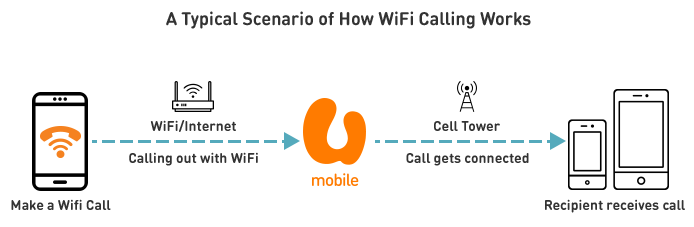
When your phone is connected to a WiFi hotspot, the call you make will be sent to the U Mobile network via the internet. From here, U Mobile will then connect your call to the recipient.
There are a few possible reasons:
WiFi Calling requires an adequate Wi-Fi signal strength before initiating the automatic connection to WiFi Calling. Move to an area where the signal’s connection is stronger.
If the WiFi network has a captive portal (Eg. Starbucks which requires log in), you may have to launch your browser and sign in to the network with the provided username/password.
- For public WiFi networks, the provider may have policies in place to block WiFi Calling service.
WiFi Calling allows you to use your existing U Mobile number to make and receive calls using a WiFi connection. Your WiFi hotspot effectively becomes a U Mobile network tower. Enjoy huge savings while overseas when calling Malaysian numbers at a local call rate with no roaming surcharge.
Effective 22 January 2025, VoWiFi is available while roaming in all countries except Myanmar. Calls to Malaysian numbers while in Myanmar will be subjected to roaming surcharges.
To activate WiFi Calling, follow these steps:
Step 1: Insert U Mobile SIM into your iPhone.
Step 2: Activate the service. Text < WIFICALLING ON > via SMS to 28118.
Step 3: Enable WiFi Calling. Select Settings > Phone > Wi-Fi Calling > toggle to ON.
Step 4: Connect to a WiFi network.
Step 5: If WiFi Calling is activated, you will see “U Mobile WiFi”. All calls will then be made using WiFi Calling.
Most devices and phones can support WiFi Calling. Kindly check with the device or phone manufacturer for compatibility.
Yes, it does. You will need to update to the latest iOS firmware and install the latest “carrier bundle”. To install the bundle, go to Settings > General > About > Install.
All U Mobile subscribers on postpaid and prepaid plans are eligible for WiFi Calling, as long as your rate plan supports “voice call”. It is not available for “data only” plans such as Postpaid MB.
All you need is a private or public WiFi network that is connected to the Internet. However, the recommended wireless LAN is either the 802.11n or 802.11ac standards as they provide a better data quality connection.
Yes, a valid and active U Mobile SIM card is required. If your line is barred, suspended or terminated, you will not be able to make a call. If you have a dual-SIM phone, please insert your U Mobile SIM into Slot 1.
You can retry setting up WiFi Calling again. If it still doesn’t work, try out these steps instead:
Step 1: Connect to a different WiFi network with a stronger signal.
Step 2: Turn the WiFi Calling OFF and ON again
Step 3: Restart your phone
Note: Some corporate networks may block WiFi Calls. If this continues, call your network administrator for assistance.
You do not need to register for IDD or IR service in order for you to use the WiFi Calling service when abroad to call back to Malaysia. However, if you need to make any outgoing IDD calls, you will need to enable IDD services.
To make a call abroad without using the WiFi Calling service, you will need to enable the IR service as well.
No, you will not be charged for incoming calls while using WiFi Calling abroad.
Effective 22 January 2025, VoWiFi is available while roaming in all countries except Myanmar. Calls to Malaysian numbers while in Myanmar will be subjected to roaming surcharges.
Yes, your WiFi calls will be disconnected if you move out of the WiFi coverage area. You will then need to make another call when you are in a WiFi coverage area again.
Yes, you can make calls to any number through U Mobile WiFi Calling as per usual.
Yes, you can access the *118# menu when you are on WiFi Calling. But if you have any issue accessing the menu, please turn off the WiFi Calling and try again.
Yes, you can send an SMS even though you are connected to WiFi Calling. However, the SMS will be sent through your mobile network instead of the connected WiFi network.
We are working to enable SMS to be sent over WiFi networks. Please re-visit our website at https://www.u.com.my/business/plans/data-services/wifi-calling for the latest information and updates.
Emergency services number 112 and 999 are routed through your normal mobile network service. If you turn on WiFi Calling and cellular service isn't available, the emergency call will use WiFi Calling to route you to a Malaysian emergency service number.
When your phone is connected to a WiFi hotspot, the call you make will be sent to the U Mobile network via the internet. From here, U Mobile will then connect your call to the recipient.
VoLTE stands for “Voice over LTE”.
The benefits of VoLTE include:
- Crystal clear voice quality
- Faster call setup
- Both “data” and “voice” usage are on the LTE network (Internet download continues at LTE speed at all times).
It is available to all U Mobile Postpaid and Prepaid customers.
There are no additional charges for VoLTE. The normal call tariffs for your rate plan may still apply.
No. VoLTE is a voice service, hence it will not consume your data quota.
You can use it when you are in U Mobile LTE coverage areas.
No. The service is automatically activated on our network.
If this happens, please SMS < WIFICALLING ON > to 28118 to activate the service.
eSIM is an embedded SIM that is built into a tiny chip within the device which allows it to download and install U Mobile’s profile. With eSIM, you no longer need a physical SIM Card to make calls, SMS and use data.
All existing subscribers and newly registered U Mobile Postpaid customers are eligible for U Mobile eSIM.
If you are an existing subscriber (Postpaid/ Prepaid), you can visit your nearest U Mobile Store and request for SIM Replacement to replace your Physical SIM with an eSIM.
For SIM replacement, prevailing charges applies.
There are no charges for newly registered U Mobile postpaid customers. But for eSIM replacements, there will be a charge of RM10.
U Mobile eSIM is currently supported by the following devices :
Apple iPhone 14
Apple iPhone 14 Plus
Apple iPhone 14 Pro
Apple iPhone 14 Pro Max
Apple iPhone 13 mini
Apple iPhone 13
Apple iPhone 13 Pro
Apple iPhone 13 Pro Max
Apple iPhone 12 mini
Apple iPhone 12
Apple iPhone 12 Pro
Apple iPhone 12 Pro Max
Apple iPhone XR
Apple iPhone XS
Apple iPhone XS Max
Apple iPhone 11
Apple iPhone 11 Pro
Apple iPhone 11 Pro Max
Apple iPhone SE (2020)
Samsung Galaxy S20
Samsung Galaxy S20+
Samsung Galaxy S20 Ultra
Samsung Galaxy Note 20
Samsung Galaxy Note 20 5G
Samsung Galaxy Note 20 Ultra 5G
Huawei P40
Huawei P40 Pro
You can walk into the nearest U Mobile Stores and request for an eSIM for your eSIM enabled device. U Mobile Stores under authorised partners/dealers will be available in the future with the actual dates to be announced later.
Before activating your eSIM, be sure to check if your device is connected to the internet throughout the process.
For iPhone users:
Step 1 : Go to Settings and tap > Cellular or Mobile Data.
Step 2 : Tap > Add Cellular Plan or Add Data Plan.
Step 3 : Scan the QR Code provided.
Step 4 :Tap > Add Cellular Plan or Add Data Plan to download and install the profile.
Your iPhone must also be updated to iOS 12.1.1 and above. For more information, refer to the manufacturer’s website: https://support.apple.com/en-my/HT209044
For Samsung users:
Step 1 : Go to Settings and tap > Connections.
Step 2 : Tap > SIM Card Manager.
Step 3 : Select > Add Mobile Plan.
Step 4 : Select > Add Using QR Code and Scan the QR Code provided.
Step 5 : Once the plan has been detected, tap > Add
Step 6 : When your plan has been downloaded and installed, select > OK to turn on the plan
For more information, refer to the manufacturer’s website: https://www.samsung.com/my/support/mobile-devices/using-your-galaxy-smartphones-with-esim/
Note: For security reasons, the QR code is only valid for (1) ONE-time download.
Kindly ensure that the device has internet connection or is connected to WiFi throughout the process. The iPhone OS should also be updated to iOS 12.1.1 and above.
You may attempt to download again by scanning the QR code on the Activation Kit. If the problem persists, please walk in to any U Mobile Stores for assistance or call our contact center to obtain the Activation Code for manual entry.
Yes, you may walk in to the nearest U Mobile Store and request for an eSIM replacement, prevailing charges applies.
U Mobile eSIM profile is non-transferable to another device. Any change in device will require a new QR code. Please walk-in to the nearest U Mobile Stores and request for a new eSIM QR Code. Do note that, this will be treated as an eSIM Replacement and prevailing charges applies.
For eSIM, changing your device will require a new QR code, similar to the eSIM replacement treatment. In this case, you may use the dedicated nano-SIM slot available in your eSIM enabled device.
A new eSIM profile is required. You may walk in to the nearest U Mobile Store and request for an eSIM replacement (prevailing charges applies).
Please call our Contact Centre Hotline immediately to report the loss of the device. Do note that your mobile line will be barred to prevent unauthorised usage. Alternatively, you may walk in to any U Mobile Stores to report the loss of your device and request for an eSIM replacement (prevailing charges applies).
Starting from 28 November 2019, you can self-register for Auto Debit online by logging on to the Self Care portal at www.u.com.my. Once you have logged in, click on ‘Auto Debit’ from the menu. From there on, simply follow the instructions on the page to register for Auto Debit.
You may also self-register for Auto Debit via the MyUMobile App from 9th December 2019 onwards.
You will need to self-register for Auto Debit as it is part of the 3D-Secure registration method. The 3D-secure is a security protocol that helps prevent any credit and debit card transaction frauds online. Only the card holder can perform verification during registration.
You will need to check with your bank. An SMS would have been sent to your main line.
If you have already subscribed to Auto Debit, you can find your card information and Auto Debit status under the View Auto Debit Subscription page at the U Mobile Self Care portal in www.u.com.my, and on MyUMobile App.
Yes. Once you have successfully registered, you will receive an SMS confirmation.
It is instantly activated upon successful registration.
No, please do not share your credit card number or any other card information over the phone. You can check your Auto Debit subscription (which includes your credit card information) by yourself by logging into the Self Care on www.u.com.my or the MyUMobile App from 9th December 2019 onwards.
Yes, you are allowed to. However, the registered cardholder will need to personally complete the 3D Secure One Time Pin (OTP) verification. During Auto Debit self-registration, the card issuing bank will send an OTP to the card holder’s registered MSISDN via SMS. You will need to obtain the OTP number from the cardholder to complete the Auto Debit self registration.
No. The cardholder must check and update the Auto Debit details accordingly.
No. The Auto Debit service will be automatically cancelled 3 months after termination of your postpaid account.
Not to worry, your Auto Debit service will be automatically cancelled 3 months after you have terminated your account.
No, it is free of charge.
To change your credit card number, please log on to the Self Care portal on www.u.com.my and select ‘Auto Debit’ on the menu. You will be directed to the ‘View Auto Debit Subscription’ page. Click on ‘Update Card’ at the bottom of your page to update your credit card information.
To unsubscribe the Auto Debit service, please log on to the Self Care portal on www.u.com.my and click ‘Auto Debit’ on the menu. You will be directed to the ‘View Auto Debit Subscription’ page. Please click on the ‘Unsubscribe’ link at the bottom of the page.
You can find the terms and conditions at www.u.com.my/tnc/1393.
Yes. An automated SMS will be sent to the Principal Number registered with U Mobile.
Check your Auto Debit subscription by logging into the Self Care at www.u.com.my or the MyUMobile App. Do ensure that your details are accurate. You can also re-update your card number again or call the bank for assistance.
BusinessCare is U Mobile’s online self-service portal for corporate customers to manage accounts, pay bills, monitor lines, and download statements.
Only authorized Customer Admins from registered corporate accounts. Access must be requested through your U Mobile Account Manager.
You can access the portal at: https://businesscare.u.com.my/bcsc/login/user
Yes. You can download the full user guide here:
BusinessCare Portal User Guide (PDF)
It contains step-by-step instructions and screenshots for all major functions.
Go to the Billing section after logging in. Select your account to see billing months, amounts due, and payment status.
Please note: Only invoices for the past 6 months are available on BusinessCare.
Tick the billing months with outstanding amounts → Click Pay Now → Choose your payment method (credit/debit card or FPX) → Complete the payment.
Go to the Auto-Debit section → Click Subscribe → Fill in your payment details and confirm. Monthly charges will be auto-deducted once activated successfully.
In the Billing section, choose the relevant month → Click Download.
When paying through BusinessCare, ensure you select and settle all outstanding bills individually by billing cycle. If there are unpaid charges from previous months, you must pay each month’s bill separately. Paying only the latest bill will not clear earlier dues, and your account will still reflect as having overdue payments. Always review the full list of unpaid bills before proceeding with payment.
BusinessCare requires bill payments to be made by billing cycle. If there are unpaid charges from previous months (e.g. January), paying only the latest bill (e.g. February) will not clear the overdue balance. You must pay each outstanding bill individually to avoid service interruption.
Yes. Go to the My SIM section after logging in. Select your account number, then click Query to display the result. You can view data, voice and SMS usage for each active line under your business account.
Yes. Go to the Service Subscription section after logging in. Select your service number, then click Custom Label to open the Custom Label page & set Custom Label for each line under your business account.
New and existing Corporate Company (CC) customers can sign up online.
Customers can sign up through the U Mobile website.
The following plans are available:
Business Postpaid Plans: U Biz 38, U Biz 68 (SIM & Device), U Biz 98 (SIM & Device)
- Business Broadband Plans: U Biz 5G (SIM only or SIM with device)
- Business Bundle Plans: U Biz Bundles, U Biz Bundles + 5G Office, U Biz Buy 2 Free 1
Please prepare the following documents for upload in either PDF or JPEG format:
PIC NRIC: A copy of the NRIC (front and back) of the company owner, director, or partner.
Authorised NRIC: A copy of the NRIC (front and back) of the person authorised by the company to complete the registration.
Authorisation Letter: A letter on company letterhead (including BRN, office phone number, and address) specifying the company owner, director, or partner’s authorisation (with IC numbers) for this PIC to complete the registration. This letter should be signed by the company owner, director, or partner with the company’s official stamp.
Company Documents: Form 49, or Form 9, etc.
TIN (Optional): A copy of the TIN document issued by IRB for tax purposes.
SST (Optional): A copy of the SST document showing your company’s SST number.
Utility Bill (Optional): Only applicable for Sabah/Sarawak companies without a BRN.
Bank Statement (Optional): Only applicable for Sabah/Sarawak companies without a BRN.
We will review your registration and reach out to you to complete the registration process. Please check your email for updates on your registration.
Once registration is completed, we’ll deliver the SIM cards and any devices (if applicable) to the address provided in your registration form.
Can't Find the Help You Need?
Contact Us
Get in touch with your Key Account Manager for urgent assistance.